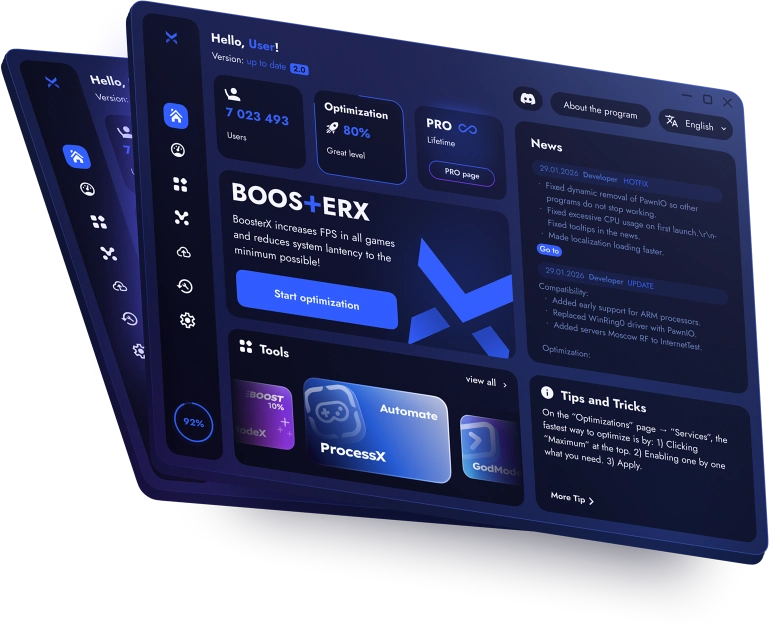
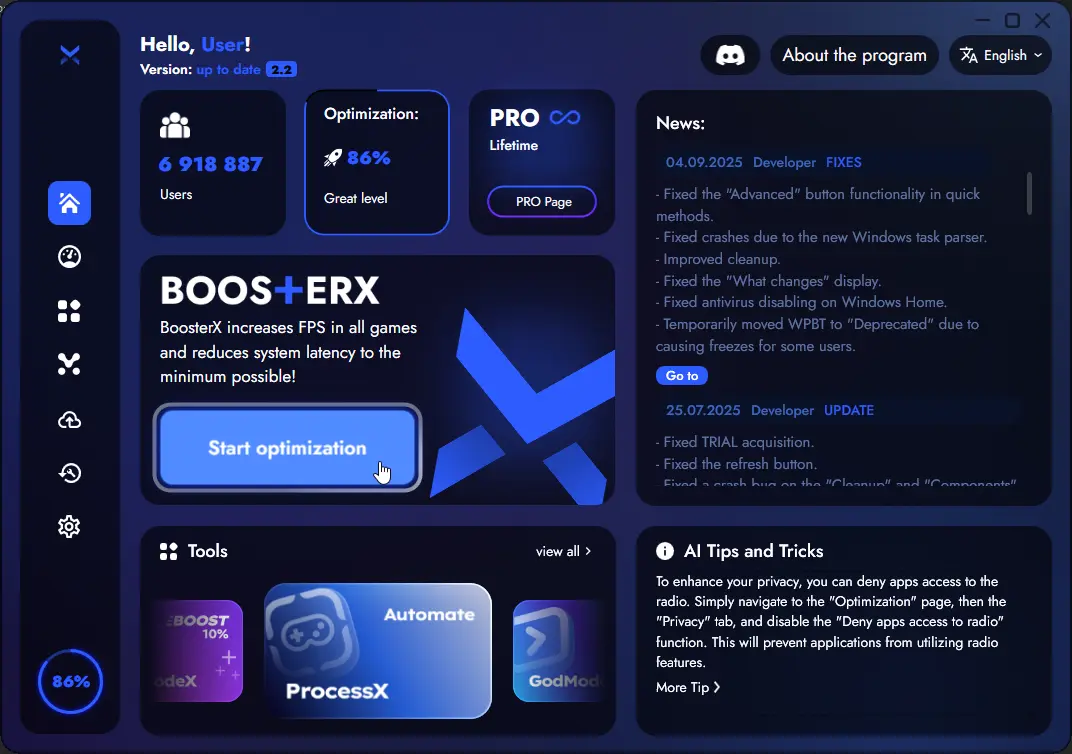
Reduce unnecessary background load, improve responsiveness, and get a smoother experience in games and heavy workloads.
Guided optimization: clear steps from analysis → recommendations → apply. User-friendly and expert modes: quick answers or full manual control. Safe by design: review changes first, apply in one go, restore anytime.
Why BoosterX exists
Windows runs many background features by default - telemetry, indexing, scheduled tasks, maintenance services. On many setups, that extra activity wastes CPU, RAM, and disk time.
BoosterX helps you tailor Windows to your real needs by disabling what you don’t use and tuning what matters. The result is typically a snappier system and, in games, smoother performance with fewer random drops.
Start and Analysis
Start with a quick system analysis
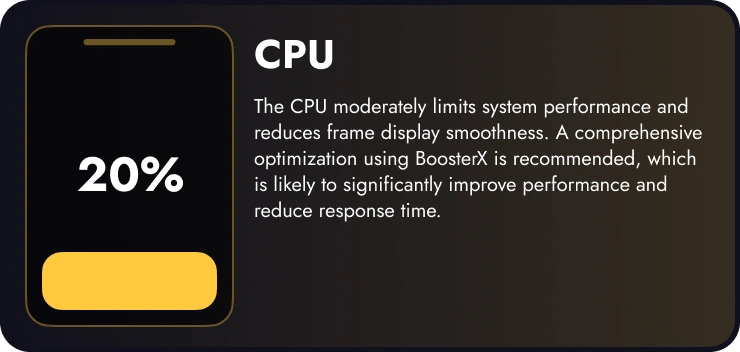
Press Start Optimization and BoosterX checks your system first, so you don’t tweak blindly. It helps you understand where performance is limited and whether optimization is likely to help.
CPU or GPU bottleneck
Boost potential (is it worth optimizing?)
Current optimization level
Privacy level (telemetry-related settings)
Future-proof level (future slowdowns prevention)
Choose your path
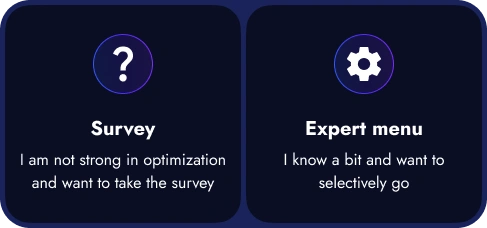
After analysis, BoosterX lets you choose how you want to proceed:
Option 1 - Maximum User Friendly (Questionnaire) If you don’t want to deal with technical terms, choose the questionnaire. BoosterX asks practical questions like: “Do you use Bluetooth?”, “Are you okay with slower Alt-Tab in exchange for better input latency?”, and similar trade-offs. Based on your answers, it builds the best configuration for your scenario.
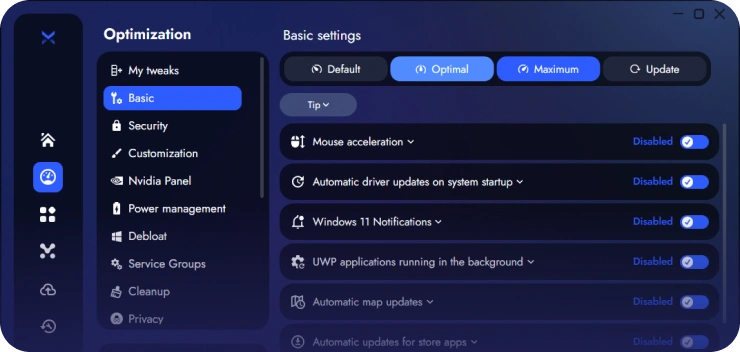
Option 2 - Expert Menu (Advanced): Prefer full control? Expert mode gives you a complete set of advanced settings where you decide exactly what to disable, enable, or tune - with clear grouping and descriptions.
Review before Apply
No surprises: review first, then apply
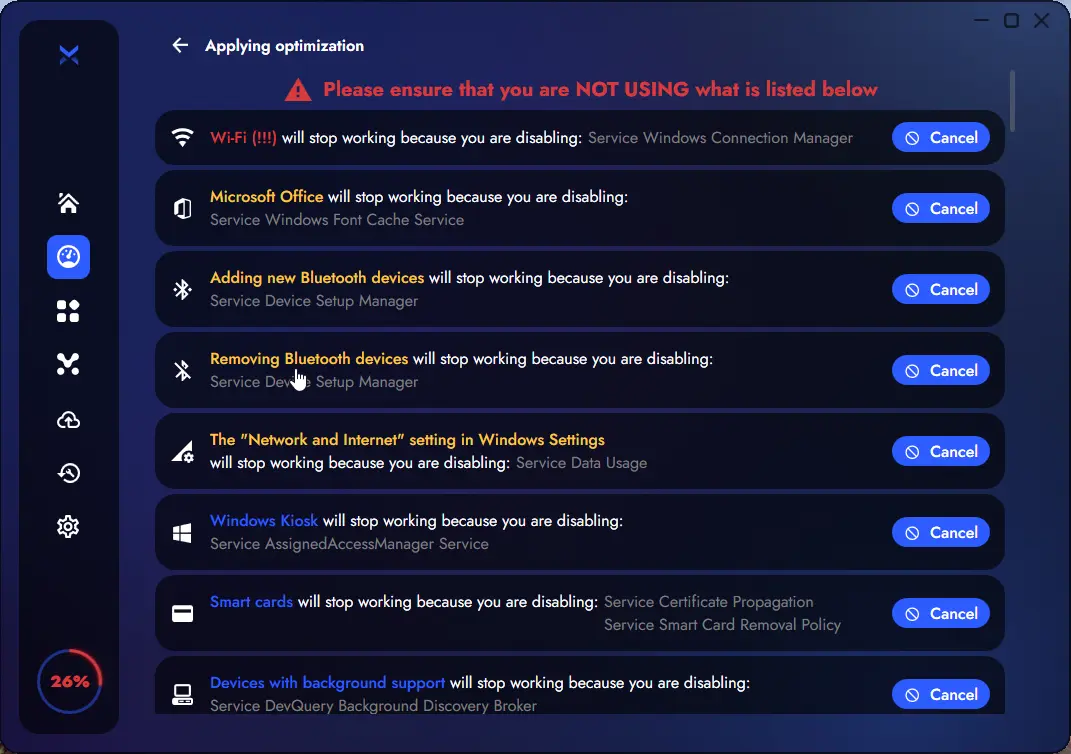
Before applying changes, BoosterX shows a clear list of what may stop working. The most sensitive items are highlighted so you can scan fast and cancel anything you don’t want.
To make this fast and readable, the most sensitive items are highlighted:
- Red: changes that most often affect common user habits - Yellow: moderately important changes - Blue: safe changes that are typically fine to apply
Only after review do you press Apply - and BoosterX applies everything in one run (instead of scattering changes across random windows and prompts).
Backups and Restore
You can always revert
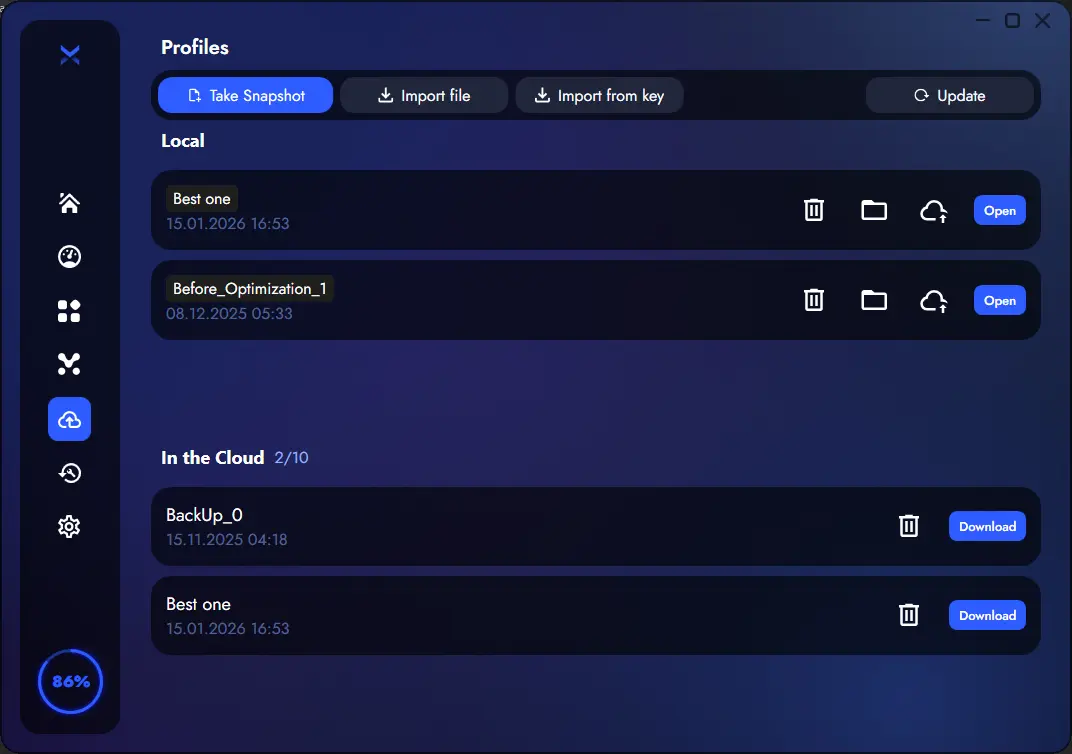
On first apply, BoosterX creates a settings backup. If you don’t like the result - or something conflicts with your workflow - you can restore most changes in a few clicks.
You can also save profiles and re-apply them later. With PRO, profiles can be stored in the cloud for easy reuse after reinstalling Windows.
Fixes and Community
One-click fixes and real support
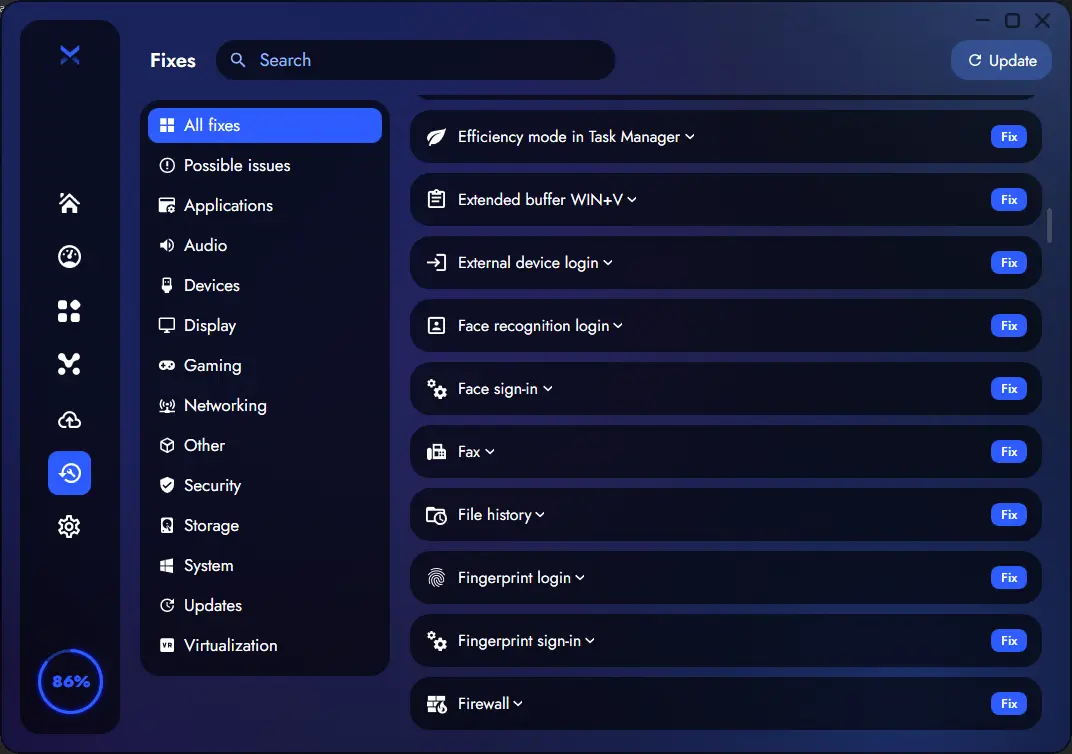
BoosterX includes a Fixes library for common Windows issues and performance blockers—apply with one click (often effective after restart).
Need help? Community and support are available, even if the issue isn’t directly caused by BoosterX.
Built-in tools
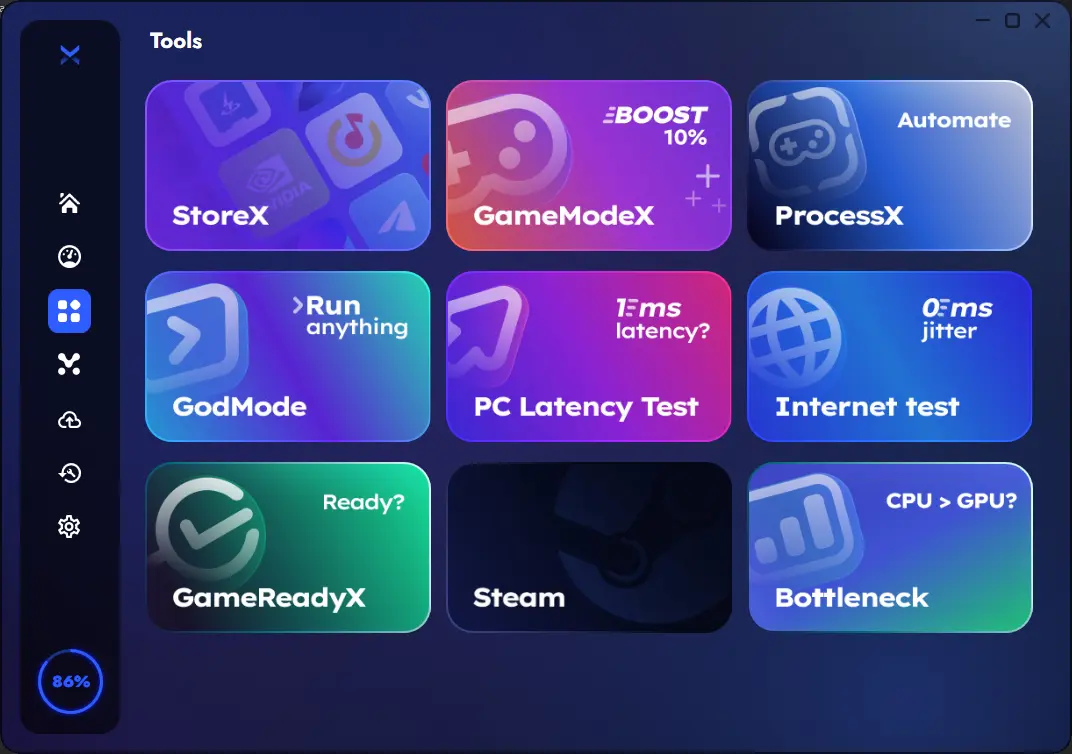
BoosterX also includes practical utilities that help you measure and fine-tune results:
ProcessX: app profiles, priorities, CPU core affinity, actions on start/exit, power plan switching
Internet Test: speed, ping, stability checks
GameReadyX: readiness checks for gaming-related settings